
How to Use AI to Manage Your Inbox and Emails
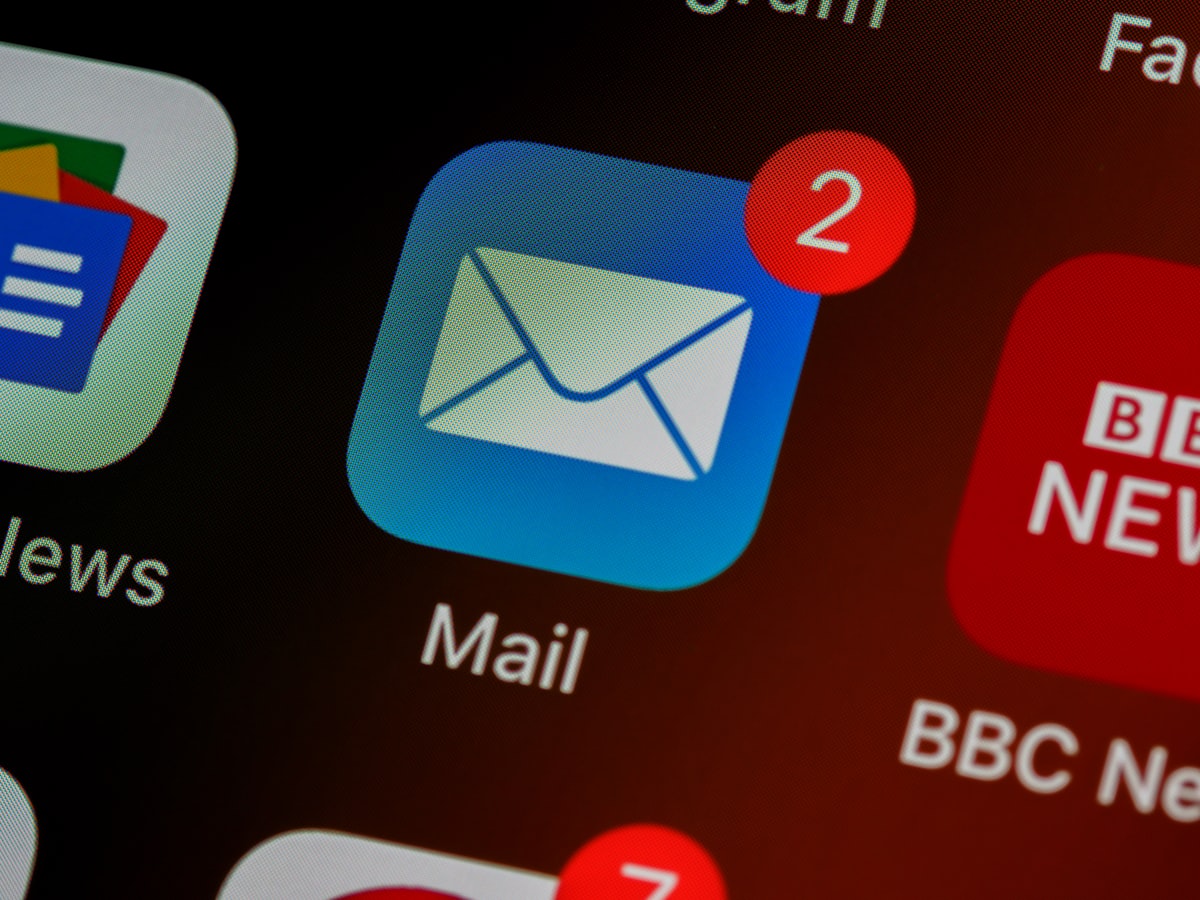
Email is still one of the biggest time drains in any workday. AI tools have gotten genuinely good at helping you manage it — here's how to set up a system that actually works.
Build your first AI Agency with Entro
Start your free trial — no credit card needed. Deploy AI agents that work for you 24/7.
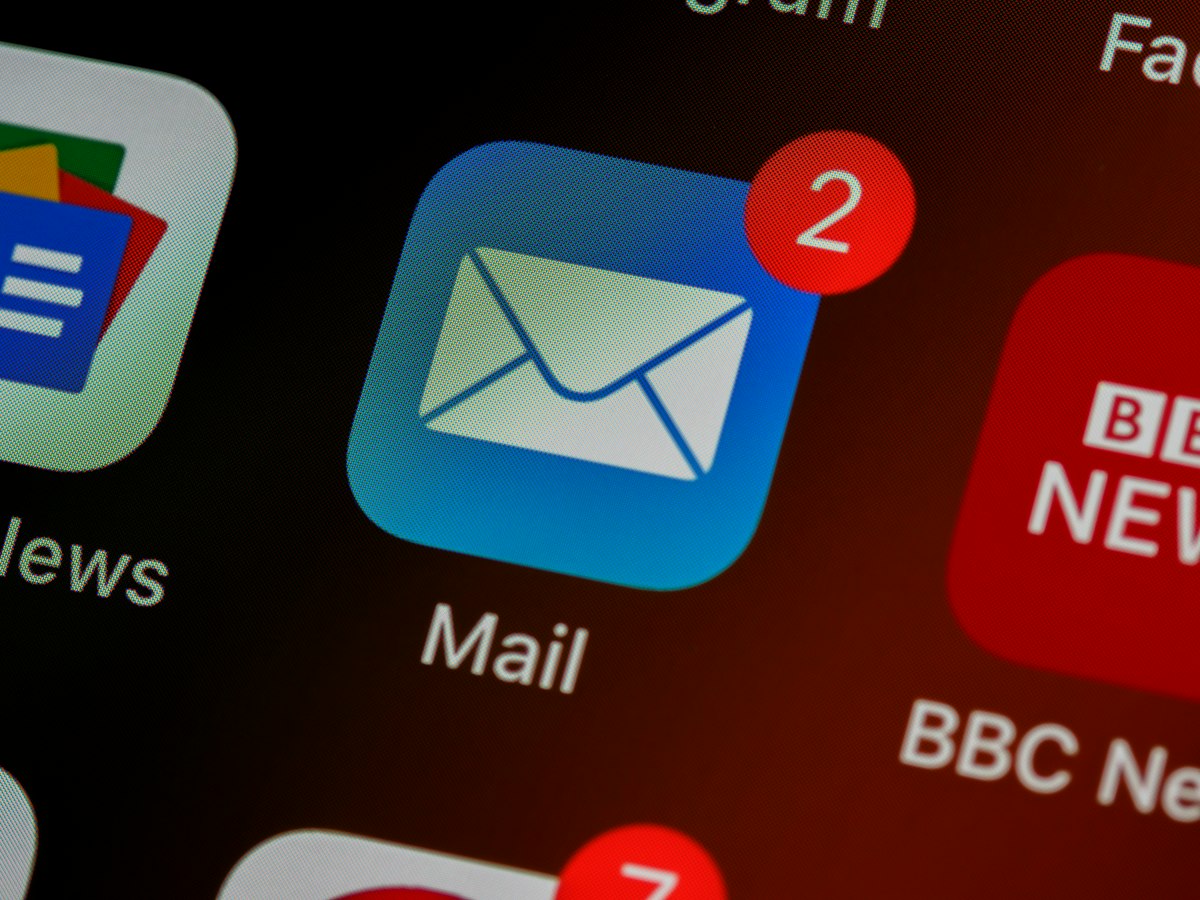
There was a period in my life when I started every morning the same way: coffee in hand, inbox open, already behind. It wasn't that I was getting an unusual volume of email. It was that each message felt like it needed a decision — respond now, respond later, file it, delete it, forward it, ignore it. By 9am I'd spent an hour in my inbox and hadn't actually done any real work.
I suspect that's familiar. Email is one of those things that expands to fill whatever time you give it. The average professional spends a significant chunk of their workday reading and responding to messages — and a lot of that time is spent on things that don't require their actual expertise. Sorting. Filtering. Writing polite holding replies. Chasing acknowledgements. Flagging things for follow-up and then forgetting to follow up.
AI email management tools have gotten quietly good at handling exactly these tasks. Not perfectly — and not without setup — but well enough that the people who've built good systems around them have genuinely changed how their mornings start.
What AI Can Realistically Do With Your Email
Before diving into specific tools, it's worth being clear about what AI email management actually means in practice, because expectations vary wildly.
At the basic end, AI can sort and prioritize incoming messages. It learns from your past behavior — which emails you open immediately, which you delete without reading, which you flag — and starts routing new messages accordingly. After a couple of weeks of use, your inbox surfaces the things that actually need your attention and quietly handles the rest.

A step up from that: AI can draft replies for you. You open a message, and before you've typed anything, you see a suggested response that covers the likely answer. Sometimes it's close enough to send with one quick edit. Sometimes it needs more work. Either way, you're editing rather than writing from scratch, which tends to be significantly faster.
Further along the spectrum: AI assistants that can fully handle certain categories of email on your behalf. Confirmation emails, scheduling requests, standard FAQ responses, receipt acknowledgements — these can be handled end-to-end by a well-configured AI, with responses going out in your name without you touching them. You review logs periodically rather than individual messages.
Which of those is right for you depends on your risk tolerance and how much you trust the tool. Most people start at the first level and work their way toward the third as they build confidence in how the AI performs.
Tools Worth Looking At
The landscape has changed a lot in the past couple of years. What started as simple filtering rules has become genuinely smart AI that understands context and intent.
Superhuman is the tool I'd recommend for people who send a high volume of email and want AI woven into every step of the process. It's fast by design, the AI summary feature means you never have to read a long thread to know what happened, and its reply drafting is consistently good. It's not cheap, but if email is a significant part of your job, the time it returns is usually worth it.
SaneBox takes a different approach — it works with whatever email client you already use and focuses on intelligent filtering. It moves newsletters, low-priority messages, and email you've been ignoring into separate folders automatically. You review your main inbox, which is genuinely small, and check the filtered folders when you have time. Setup is fast and the learning curve is minimal.
Google's built-in AI features in Gmail have improved substantially. Smart Compose, Smart Reply, and the newer AI summary features in Google Workspace do meaningful work without requiring a separate tool or paid subscription. If you're already on Gmail and not ready to pay for a dedicated AI email tool, spending an hour getting familiar with what's already available is a reasonable first step.
Microsoft Copilot in Outlook has similar capabilities for people on the Microsoft stack — email summarization, draft generation, and suggested follow-ups integrated directly into the interface.
For people who want a more custom setup — where AI handles entire categories of email autonomously — tools like Zapier with AI actions, or purpose-built AI assistants like Entro, let you define rules and responses that match your specific situation. You can tell the system exactly how to handle interview requests, vendor outreach, client check-ins, or whatever the common categories are for your work.
Setting Up Your System: Where to Start
The mistake most people make when setting up AI email management is trying to solve everything at once. They want the perfect system on day one, so they spend three hours configuring rules, then abandon it when something doesn't work as expected.
A simpler starting point: identify your one biggest inbox frustration and fix just that.
If newsletters and promotional emails are what's cluttering your inbox, start with SaneBox or a filter-focused tool and spend 20 minutes getting everything routed properly. That one change often makes the inbox feel more manageable immediately.
If you spend too much time writing similar replies — thank-you notes, scheduling confirmations, standard information requests — enable AI reply drafting in whatever tool you use and spend a week seeing how often the suggestions are close enough to use. Track the time you save. Use that data to decide whether to invest more.
If you lose track of emails that need follow-up, a snooze-and-remind feature (Boomerang does this well, as does Superhuman) is a simple and underrated fix. You tell the email to come back if you haven't heard from them in three days, and it does. No spreadsheet, no mental tracking, no dropped balls.
Getting AI to Draft Replies in Your Voice
One of the common concerns with AI-drafted emails is that they sound generic. Corporate. A little stiff. You send them and the recipient can tell something's slightly off — the tone doesn't quite sound like you.
This is a real issue, and it's solvable, but it requires a bit of setup effort upfront.
Most AI email tools improve their drafts the more you use them, especially if you edit their suggestions before sending. Those edits teach the system your preferences over time. If you always soften formal language, add a personal sign-off, or cut the word "certainly" from every reply, the AI starts learning that.

For tools that allow custom instructions — like Superhuman's AI settings or configuring a custom assistant — writing a short style guide is worth the time. It doesn't need to be long. Something like: "I write in a conversational tone, use contractions freely, keep replies concise, and sign off with just my first name." That kind of brief instruction shapes the output significantly.
It's also worth accepting that AI drafts are a starting point, not a finished product. For important emails — clients, partners, situations with nuance — you're always going to want to read and edit before sending. What AI saves you is the blank-page problem and the time spent on messages that really don't need your full creative attention.
Handling High-Volume Inboxes
If you're managing a shared inbox — a support@ address, an info@ address, a general contact form — the calculus changes. The volume is typically higher, the responses more standardized, and the cost of occasional errors lower (because these aren't your most sensitive relationships).
This is where AI really earns its place. A well-configured AI assistant can handle the majority of incoming queries to a shared inbox without human involvement. Common questions get answered immediately, routing to the right team member happens automatically, and the humans in the loop focus only on the messages that genuinely need judgment or relationship context.
The setup for this typically involves training the AI on your FAQs, your standard response templates, and any specific routing rules. It takes a few hours to do properly. But once it's running, a shared inbox that used to require daily manual attention often runs with a weekly check-in instead.
A Few Things to Watch Out For
AI email management isn't a set-it-and-forget-it system. A few things are worth keeping in mind once you're up and running.
Review your filtered folders occasionally. AI sorting isn't perfect, and something genuinely important occasionally ends up in the wrong place. Checking your SaneBox folders or filtered tabs every day or two means you're not missing things — just catching them slightly later than you would have otherwise.
Be careful with full automation for anything client-facing. An AI that sends the wrong tone to an important client, or gives an incorrect answer to a sensitive question, can cost more relationship capital than the time saved was worth. Reserve full autonomy for low-stakes categories until you're confident in the tool's judgment.
Keep your settings updated. If your role changes, you take on a new project, or your communication patterns shift, the AI's learned preferences may no longer match your current reality. Spending 15 minutes reconfiguring after a major change in your work keeps the system accurate.
The Bigger Shift

What a well-configured AI email system actually changes isn't just the time spent in your inbox. It changes how you relate to email as a source of stress. When you trust that important messages are surfaced, follow-ups won't slip, and routine replies are handled, email stops being something that requires constant attention.
You move from reactive — always catching up — to intentional. You check email when it's time to check email, handle what matters, and close it knowing nothing critical is sitting there waiting.
That mental shift is harder to quantify than the minutes saved per day, but it's probably the more significant change for most people.
If you want to take this further — building an AI assistant that handles email alongside other customer communication channels, maintains your knowledge base, and manages follow-ups across your whole business — Entro is worth exploring. It's designed for businesses that want AI doing real operational work, not just surfacing suggestions. And you don't need a technical team to set it up.

Written by
Mahdi Rasti
I'm a tech writer with over 10 years of experience covering the latest in innovation, gadgets, and digital trends. When not writing, you'll find them testing the newest tech.
Frequently Asked Questions
Can AI really manage my email without me losing important messages?
Yes, when set up properly. AI email tools learn from your behavior — what you open, what you ignore, what you reply to — and route messages accordingly. The key is checking your filtered folders occasionally when you first start, to make sure nothing important is being miscategorized. After a couple of weeks of use, most people find the sorting becomes reliably accurate.
What's the best AI email tool for someone who wants a simple setup?
SaneBox is the easiest starting point. It works with your existing email client (Gmail, Outlook, Apple Mail) and doesn't require changing how you work — it just filters low-priority email into separate folders automatically. For Gmail users who don't want a separate tool, Google's built-in Smart Reply and Smart Compose features are already available and worth exploring first.
Will AI-drafted email replies sound like me?
With some setup, yes. Most tools improve over time by learning from the edits you make to their suggestions. Tools that accept custom style instructions — a brief note about your tone, preferred sign-off, or words you want avoided — produce much better output from the start. Think of first drafts as a starting point you refine, not finished copy you send as-is.
Is it safe to let AI send emails on my behalf automatically?
It depends on the category of email. For low-stakes automated responses — newsletter confirmations, scheduling acknowledgements, standard FAQ answers — most teams find the error rate acceptable. For client-facing communication, it's generally better to have AI draft and you review, at least until you've built enough confidence in how the tool handles your specific context.
How long does it take to set up an AI email management system?
A basic filtering setup with something like SaneBox takes under 30 minutes. Getting AI draft replies working in tools like Superhuman or Gmail takes an hour or two of initial use before the suggestions become reliably useful. A more custom setup — like an AI that autonomously handles a shared inbox — typically takes a few hours to configure properly, but runs largely on its own after that.
Can AI help manage a shared team inbox as well as a personal one?
Yes, and this is often where the impact is largest. Shared inboxes like support@ or info@ tend to get high volumes of similar queries. An AI assistant trained on your FAQs and response templates can handle the majority of incoming messages automatically, route the rest to the right team member, and reduce what used to be hours of daily manual work to a quick review.
Build your first AI Agency
Create powerful AI agents that automate your workflows, manage content, and handle tasks around the clock.
No credit card needed · Cancel anytime