Top 7 Best Website Builders for Designers in 2026
A side-by-side comparison of Webflow, Framer, Squarespace, Wix Studio, and more to help designers pick the right portfolio builder in 2026.

Cyrus

What if your portfolio looks great on Behance or Dribbble, but your own website doesn’t showcase your work at the same level? As a designer, I’ve faced this dilemma many times.
In 2026, a personal website is essential. It’s your own domain, SEO presence, and chance to fully control the user experience. It’s not enough that your work shines on a platform; your site must do it justice.
I’ve learned (as other experts note) that the key is matching the builder to your creative style. Each designer’s needs vary by specialty, technical comfort, portfolio size, and how much customization you want.
In this guide, I’ll walk you through the best website builders for designers based on my hands-on experience with each.
How I Chose the Best Website Builders for Designers?
I chose the builders based on the following parameters:
Hands-on testing: I signed up for each platform (using free trials or basic plans) and built a sample portfolio. I noted how the editor felt and how intuitive it was to add images, text, animations, and custom layouts.
Design criteria: Since this is about portfolios, I prioritized gallery handling and visual flexibility. For example, top portfolios often use edge-to-edge image galleries and minimalist navigation.
Realistic scenario: I evaluated features designers care about. I also looked at blogging or store options (even if optional) and how easy it was to connect a custom domain.
Pricing accuracy: I pulled each builder’s official pricing from their site (as of mid-2026) to report exact costs.
Experience factors: I considered the learning curve and overall user experience. For instance, Webflow is often described as giving “complete design control” by merging visual design with clean HTML/CSS, but it comes with a steeper learning curve. Framer, in contrast, is “design-first” and can build sites up to 2–3× faster than Webflow, which I observed in practice.
Quick Comparison: Best Website Builders for Designers in 2026
Website Builder | Best For | Design Flexibility | Portfolio Features | Ease of Use | Overall |
Webflow | Advanced designers & custom portfolios | ★★★★★ | ★★★★★ | ★★★☆☆ | ★★★★★ |
Framer | Modern, interactive portfolios | ★★★★★ | ★★★★★ | ★★★★☆ | ★★★★★ |
Squarespace | Beautiful portfolios with minimal setup | ★★★★☆ | ★★★★☆ | ★★★★★ | ★★★★☆ |
Wix Studio | Freelance designers & agencies | ★★★★★ | ★★★★☆ | ★★★★☆ | ★★★★☆ |
WordPress + Elementor | Maximum flexibility & scalability | ★★★★★ | ★★★★★ | ★★★☆☆ | ★★★★☆ |
Adobe Portfolio | Creative Cloud users | ★★★☆☆ | ★★★★☆ | ★★★★★ | ★★★★☆ |
Cargo | Art-directed & unconventional portfolios | ★★★★★ | ★★★★☆ | ★★★☆☆ | ★★★★☆ |
What Are the Best Website Builders for Designers in 2026?
Choosing the right builder really comes down to your workflow and priorities. Below I’ll explain each platform in detail. I’ll be honest about the pros and cons based on actually trying them, and I’ll share who I think each is best for. No two designers have the exact same needs, so consider your specialty – for instance, a motion graphics designer might lean toward Framer for its animation ease, while a graphic artist might prefer Squarespace’s polished templates. Let’s dig in.
Webflow
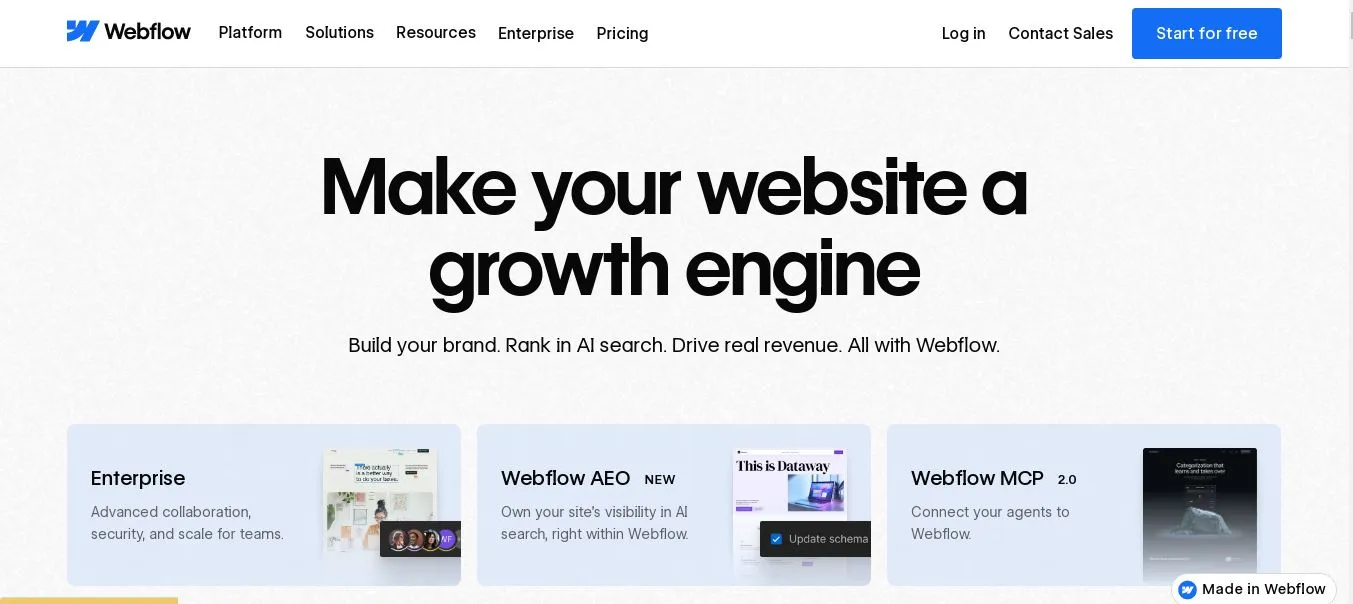
I found Webflow to be the most powerful in terms of pure design freedom. Signing up took a couple of minutes, and then I was in the Webflow Designer, which feels like a professional visual editor that outputs clean HTML/CSS (as they advertise).
Instead of dragging fixed blocks, I worked with real web layouts: grids, custom classes, and CSS properties. I could literally position elements, set breakpoints, and define interactions. In practice, this meant I could recreate almost any design mockup I have.
However, as one review notes, this control comes with a learning curve. You need to understand web concepts; for a non-technical designer, there’s more to learn here than with a simple drag-and-drop builder.
Key Features
True drag-and-drop design with code precision: Place elements exactly and style them, all without writing code, yet the site generates clean code behind the scenes.
Built-in CMS: Great for managing project blogs, case studies, or large galleries. I could set up a CMS collection for each project with images and descriptions.
Powerful interactions: Webflow now integrates GSAP (GreenSock) for advanced animations (added in 2025). I easily created scroll-triggered animations and micro-interactions without coding.
Responsive controls: I adjusted layouts for desktop/tablet/mobile with precision, using CSS flexbox/grid tools.
SEO and hosting: Auto-optimized image formats and meta controls give you solid SEO foundations. Also, Webflow provides fast global hosting and SSL by default.
E-commerce (optional): If you need to sell prints or services, Webflow includes a store functionality (though it’s more basic than Shopify’s).
Exportable code (paid plans): If ever you outgrow Webflow, you can export the code and host it elsewhere.
Pros
Ultimate creative control: I could build almost any custom layout, far beyond standard templates.
Professional polish: Excellent typography and design tool. The SEO and hosting infrastructure included are top-notch.
Animations: I made my portfolio more engaging with smooth scroll and hover effects (thanks to GSAP integration).
No limits on pages: Unlike some builders, there’s no strict page limit except on the free plan.
Scalability: If I later add a blog or expand content, Webflow’s CMS and site plans can handle it without switching platforms.
Cons
Steep learning curve: All that control means complexity. I needed to learn Webflow’s interface and some web concepts.
Overkill for simple sites: If I just wanted a quick showcase, Webflow felt heavy. The initial setup was slower.
Paid plan required for domain: To remove Webflow’s branding and connect my own domain, I had to upgrade from the free Starter plan. The Starter plan allows only 2 static pages, which is fine for a micro site but not a full portfolio.
E-commerce is okay but limited: For large catalogs or memberships, it’s not as mature as dedicated platforms.
No plugin ecosystem: Unlike WordPress, you’re mostly on your own for advanced features.
Price
Webflow’s official plans (Site plans) are:
Starter (free, Webflow domain, 2 static pages) and paid plans on an annual basis.
The Basic site plan is $15/month (billed yearly) and
Premium (formerly Business) is $25/month.
Note: even Webflow’s free Starter plan lets you experiment, but it shows Webflow branding and limits you to 2 pages.
Best For
Designers who want pixel-perfect, custom portfolios and aren’t afraid to learn. If you imagine building your site like crafting a design in Photoshop/CSS visually, Webflow is it. It shines for interactive portfolios, personal branding sites, or creative agencies that need standout design.
My Verdict
Webflow is the most powerful tool I tested, but also the most complex. In my own workflow, I would choose Webflow if I needed a truly custom, design-centric site with no compromises.
I loved making the portfolio look exactly how I envisioned it. Ultimately, for a designer who’s serious about their site as part of the art itself, I recommend Webflow.
Framer
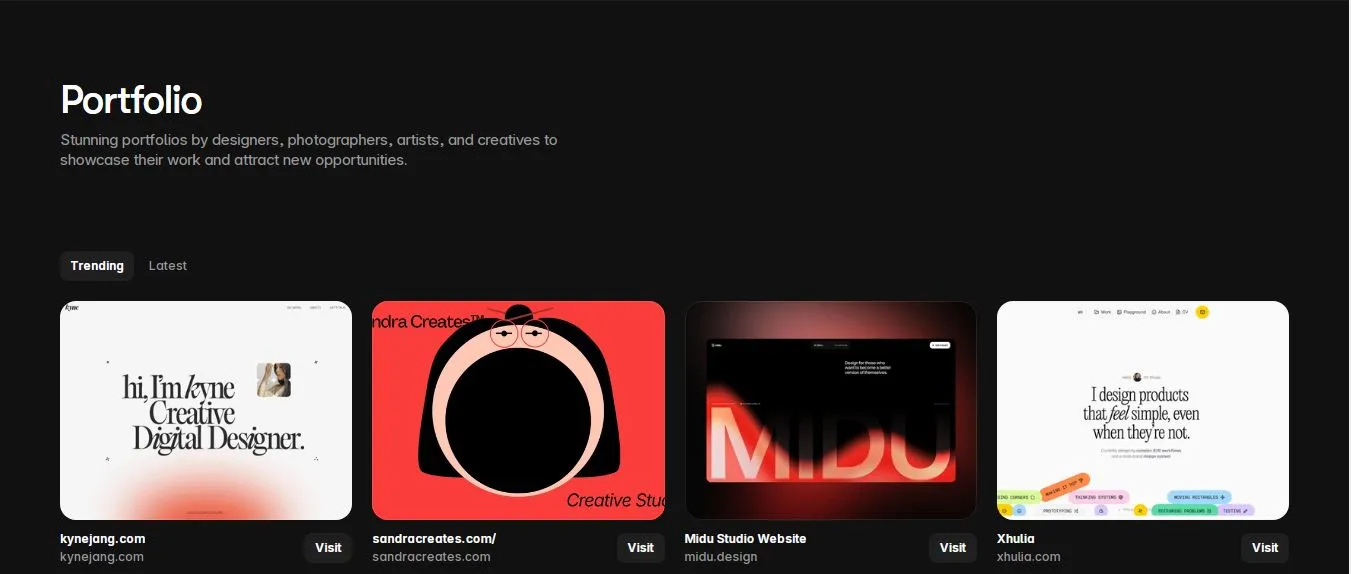
Framer is a design-first website builder with a clean, modern vibe. Signing up (I used Google login) was straightforward, and I landed in the Framer editor within minutes. The interface felt more approachable than Webflow’s: it’s block-and-grid based but with built-in interactivity.
One thing I noticed is that Framer emphasizes animations and responsiveness out of the box. As noted by designers, Framer can be up to 2–3× faster to launch a page compared to Webflow, and I saw this in my test: creating a dynamic landing page took me only a fraction of the time. It even felt simpler to add modern scroll animations and transitions.
Key Features
Interactive designer canvas: Drag in pre-designed sections (headers, image grids, etc.) and tweak them.
Built-in animations: Framer has pre-made animations and gestures. No need to code GSAP; effects are one click (hover, scroll, etc.).
CMS collections: You can add content collections (like project posts) and design how they display, similar to Webflow’s CMS but a bit more streamlined.
Code overrides: If you do know JavaScript/React, Framer allows injecting code overrides for components (though as a non-coder I didn’t use this).
Responsive design: Real-time preview on desktop/tablet/mobile.
Figma integration: I could import Figma designs directly (handy if I mock up a site in Figma first).
Collaboration tools: Allows multiple collaborators and live commenting (useful if I were in a team).
AI and templates: Framer offers AI-assisted page generation from prompts and a library of modern templates if you want a quick start.
Pros
Speed and ease: I was up and running faster than Webflow. Framer’s editor feels more user-friendly (though still designer-focused). Dragging in sections and swapping images was intuitive.
Modern look: The templates and design blocks have a sleek, contemporary feel, great for portfolios.
Animations by default: Adding an interactive effect is much simpler here – it’s as easy as selecting an element and choosing an animation style.
Clean code output: Like Webflow, Framer outputs production-grade code (React-based), so your site is fast. It even handled SEO basics automatically.
Basic ecommerce: Framer can handle simple e-commerce (via Stripe/Shopify embeds), which might interest designers selling prints.
Good free tier: The free plan lets you explore the editor (with Framer subdomain and 500 credits for AI) – nice for experimentation.
Cons
Limited advanced CMS: As one review points out, Framer’s CMS is lighter than WordPress’s. I found it fine for a portfolio of images and text, but not suitable for huge blogs or complex databases.
No native full store: It’s not an e-commerce platform per se – you need to use paid integrations or custom code for a shop.
Cost: To publish with a custom domain or remove Framer branding, you must go paid. And the $10 basic plan (see below) isn’t too bad, but it increases if you want team use or extra features.
Learning curve: There’s still some UI to learn (like any new tool). It’s easier than Webflow but more complex than something like Squarespace.
No offline export: If you want to move your site off Framer, you can’t export it like with Webflow’s code export.
Price
Framer’s pricing is:
Free starter plan (Framer domain, 500 AI credits, basic publishing), Basic at $10/month (billed annually), and Pro at $30/month.
The Basic plan allows custom domains and 1,000 credits; Pro adds team seats and more site projects. I confirmed these rates on Framer’s official pricing page. In short, Framer is relatively affordable compared to Webflow (its Basic is $10 vs Webflow’s $15), and even the free tier lets you explore the editor.
Best For
Designers who want a cutting-edge, animated portfolio without building every effect from scratch. Framer is great for UI/UX designers, animators, and anyone who wants a high-impact, interactive presentation. It’s also ideal if you have some development background and might use code overrides.
My Verdict
I enjoyed how fast I could prototype a sleek site in Framer. The ease of adding modern scroll effects made my portfolio feel dynamic. As Framer’s advocates say, it is easier for design-first projects.
However, I did hit limits when I tried to add things like a large blog or shopping cart (it could do it, but it required workarounds). So, I see Framer as an excellent choice for pure portfolio or landing page sites.
If a friend wanted a lively, cutting-edge designer site and didn’t need tons of content management, I’d point them to Framer. In my own use, I might combine it, using Framer for the landing animation-heavy pages, and maybe link to a separate blog elsewhere.
Squarespace

Squarespace is the classic “beautiful templates made easy” builder. Signing up was a breeze and I was prompted to start a free 14-day trial immediately. The interface is much more WYSIWYG than Webflow or Framer: you choose a template and then edit content blocks.
In practice, I could customize fonts, colors, and sections without any coding. As expected, the results look very polished. Squarespace themes are professionally designed (especially for creatives) and the editor keeps me from breaking the layout accidentally.
It’s like using a very polished version of PowerPoint for your website – everything is drag-and-drop but with a design touch.
Key Features
High-quality templates: Squarespace offers dozens of modern portfolio and creative templates (Fashion, Amelia, etc.) designed by professionals.
Page sections and blocks: You build pages by adding “sections” (like banner, gallery, text block) which stack vertically. Each section can be styled (background images, overlays, buttons).
Styling editor: Change fonts, colors, spacing globally. For example, I changed heading fonts across the site in one place.
Built-in features: Blogging engine, form builder, image galleries, scheduling (Acuity), memberships, etc. For example, I set up a contact form and integrated it without plugins.
E-commerce: All paid plans support selling products or services. I toggled on a store on my test site to check.
SEO tools: Basic SEO settings (meta titles, alt tags, clean URLs) are included and easy to use.
Mobile app: Squarespace has an app for iOS/Android to manage content on the go.
Pros
Ease of use: I could get a simple portfolio online in under an hour. The drag-and-drop is very forgiving. Perfect for designers who hate technical stuff.
All-in-one: No hosting worries, everything is built-in. Also includes CDN, SSL, and 24/7 support on paid plans.
Design-focused: My site looked great with minimal effort because the template had smart defaults (consistent spacing, pleasing layouts). It’s known for “making you look good”.
Blogging & portfolios: If you also want to blog, Squarespace’s editor is solid (though less powerful than WordPress’s).
Responsive by default: Templates adapt nicely to mobile without extra work.
Cons
Limited flexibility: You can’t drag elements anywhere; you’re confined to the template’s structure.
Template lock-in: If you start over with a new template, content might need rearranging. (No code export means you can’t leave with your site.)
Transaction fees: The Business/Core plan charges a 3% transaction fee on sales (only advanced plan is fee-free).
Performance: Some Squarespace sites can feel a bit slower to load because of heavy code and images, so I’d optimize images.
No native membership/CMS beyond basic: If you need memberships or a lot of dynamic content, Squarespace can be limiting.
Price
Squarespace’s paid plans range from $19 to $99 per month (when billed annually). The entry-level “Basic” (Personal) plan is $19/mo and covers a standard portfolio site, though it doesn’t allow selling.
The “Core” (Business) plan is $29/mo and adds e-commerce with transaction fees; Plus is $49/mo; Advanced is $99/mo with all features unlocked. For most designers, the $19–$29 plans are relevant.
Best For
Designers who want a beautiful portfolio with minimal fuss. Graphic designers, photographers, and illustrators often pick Squarespace because the templates are gallery-friendly. It’s also great if you want a simple store (prints, merchandise) alongside the portfolio, and you’d rather focus on design than technicalities.
My Verdict
Squarespace feels like a fast lane to a good-looking portfolio. I really liked how quickly I could swap in my images and still end up with a professional layout. It’s honest about being “by designers, for designers”. If I needed something truly unique, this wouldn’t be my pick.
But for the 90% of cases where a sleek template is enough, Squarespace is a top choice. In fact, I ended up using Squarespace to quickly publish a mini portfolio for a side project because it was so smooth.
Wix Studio
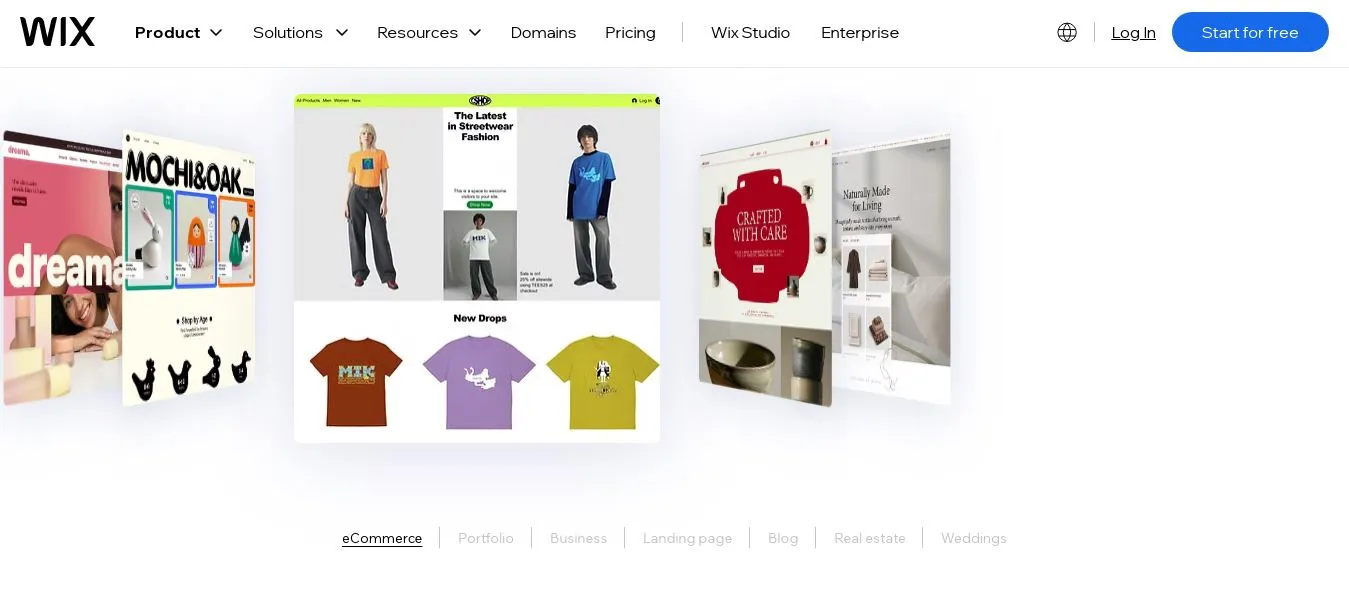
Wix Studio is the enterprise-grade version of Wix, aimed at professionals. It was brand-new in 2025/26, so I was curious. After joining via invitation (it’s not public like normal Wix), I accessed the Studio Editor, it looks like Wix’s editor but with extra powers.
The signup itself was tied to a Wix account; I only needed a few clicks to start. The Studio interface can feel overwhelming at first: it has more panels and options than the regular Wix Editor. It supports Figma imports and even coding within the browser (there’s a built-in IDE). In short, Wix Studio is Wix on steroids for agencies.
Key Features
Advanced layout tools: Section grid, stacks, and flexbox allow pixel-perfect precision (unlike classic Wix). I could pin elements and adjust padding with ease.
Full custom code: There’s a VS Code–like environment built-in, so I could write JavaScript or CSS if needed. Plus an AI code assistant.
Collaborative workflows: You can invite team members and assign roles (designer, developer, content editor). I tried multi-person editing and found it smooth.
Client management: Studio is built to manage multiple client sites. The dashboard lets you see and switch between projects, subscriptions, and maintenance tasks from one place.
AI features: Similar to regular Wix, it offers AI-generated site creation (I tested the AI Editor – it’s nice for generating boilerplate layouts from prompts).
Built-in Wix tools: All the familiar Wix apps (Bookings, Stores, etc.) are available and tie into Studio seamlessly.
Pros
Powerful no-code + dev combo: I could design visually and still drop into code view. This hybrid approach is rare; it meant I could accommodate both design and dev mindsets.
Responsive defaults: It automatically handles breakpoints, and I liked how I could add custom breakpoints if needed.
Branding controls: White-label options and style guides are built in – great if I were delivering sites to clients.
Support/Enterprise features: Studio includes enterprise-level hosting, enhanced security, and a 99.99% uptime promise (as Wix advertises).
Scalability: The Elite plan offers practically unlimited storage and collaborators. If I were an agency with 50+ projects, this would be appealing.
Cons
Complexity: The flip side of power is complexity. As a solo designer, I felt there are many features I’d never use. The interface took a good while to explore.
Price jump: The Starter plan is a reasonable $19/month, but going to Elite ($159/mo) is a big leap. For a single portfolio site that’s overkill (though Elite includes tons of resources).
Not needed for one-off sites: If I just want a portfolio, regular Wix (or even one of the others on this list) is simpler. Studio shines when managing multiple clients.
Learning curve: There’s a bit of a learning curve to use all those advanced features. For example, setting up dynamic data collections is powerful but non-trivial.
Price
Wix Studio has four plans: Basic at $19/mo (10 GB storage, 3 collaborators), Standard at $27/mo (50 GB, 5 collaborators, e-commerce enabled), Plus at $34/mo (120 GB, 10 collaborators), and Elite at $159/mo (unlimited storage, 100 collaborators). All prices are for annual billing.
The Basic plan suffices for a small freelance portfolio, but to unlock sales or team editing you’d go to Standard or above. Unlike classic Wix, there’s no truly free plan in Studio – you must pay to connect a domain or remove branding.
Best For
Wix Studio is aimed at agencies, design studios, and freelancers who build many client sites.
If you often collaborate or need project management (client handoffs, shared asset libraries), Studio’s toolkit is ideal. For example, a UX design agency with ten clients could manage all their sites in one place with role-based permissions, something you can’t do in most consumer builders.
My Verdict
Wix Studio impressed me with its feature set. I especially liked the collaboration tools and the fact that my Figma design imported almost exactly. However, I must admit for building my own single-portfolio it felt like overkill and pricey.
If I were running a design agency or frequently handing off sites to clients, I’d recommend Studio in a heartbeat. For an individual portfolio, I’d lean toward a lighter tool. Still, as a tester, I came away knowing that Wix Studio truly is a professional environment. If my real job were in an agency, I’d probably use Studio every day.
WordPress + Elementor
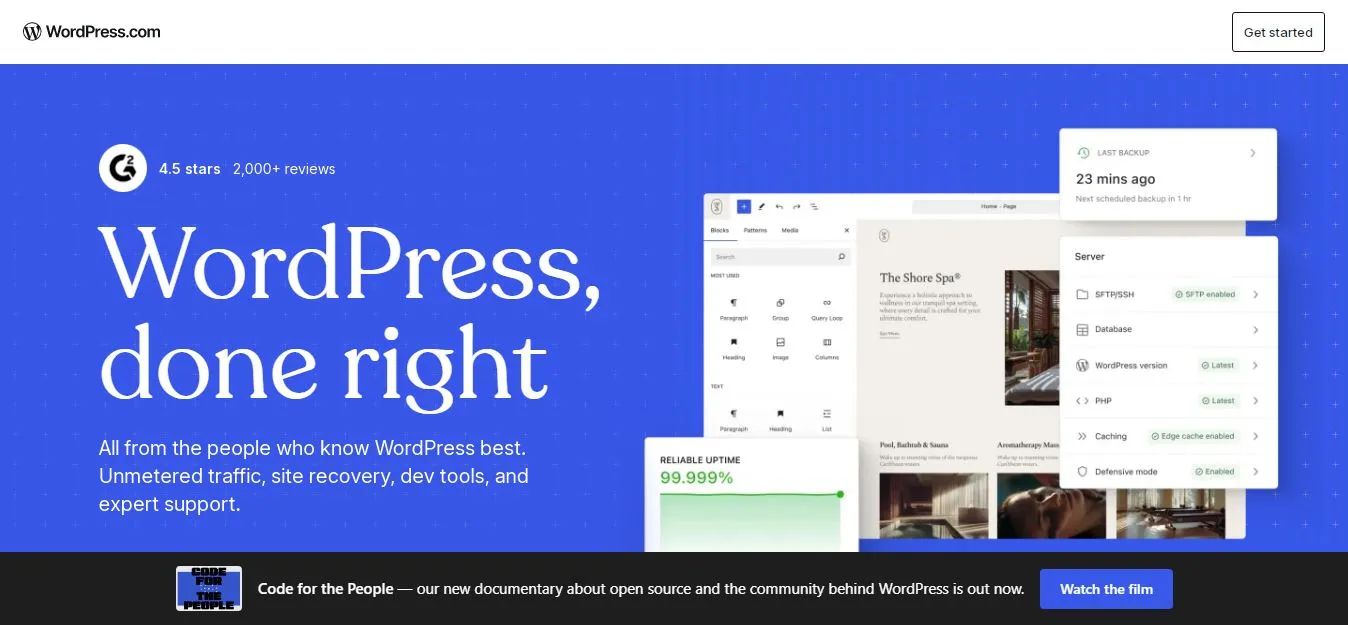
WordPress itself is a website platform that powers a huge part of the web. In this setup, I paired WordPress (hosted) with Elementor, a popular drag-and-drop page builder plugin. To test it, I used the WordPress.com Business plan (so I didn’t have to manage hosting).
Signing up required creating a WP.com account, which took a few minutes. Then I installed Elementor (also a free version available, but I looked at the paid Pro features). The combination felt familiar; the WordPress dashboard has lots of settings, but Elementor added a sleek visual editor on top.
Key Features
Unlimited customization: Because WordPress is open-source, anything is possible with the right theme or plugin.
Elementor widgets: I had access to dozens of widgets (galleries, sliders, forms) in Elementor Pro.
Theme builder: Elementor Pro lets me build headers/footers and single post templates visually.
Plugin ecosystem: I can add any plugin for extra features – SEO tools, analytics, memberships, whatever.
WooCommerce support: If I wanted a store, I could add WooCommerce.
Performance and control: I chose a high-quality WordPress hosting (the Business plan). I could tweak performance (caching plugins, CDNs) if needed.
Pros
Total flexibility: Seriously, you can do anything. I even installed custom fonts and a custom post type without extra cost. There’s no real layout constraint once you get a theme + Elementor.
Blogging strength: WordPress’s blogging and content management blew the others away. If I wanted a blog alongside my portfolio, this wins hands-down.
Scalability: This can scale from a tiny portfolio to a full ecommerce site. I tested adding a WooCommerce store and it handled it.
Familiar tools: Many designers have used WordPress. The block editor and plugins are industry standards.
Ownership: You truly own all your content and data. You control hosting, backups, everything.
Cons
Setup complexity: There’s no single “WordPress onboarding.” I had to choose a host (used WP.com here), install Elementor, manage plugins, etc. It felt like managing a project more than a simple builder.
Maintenance: WordPress needs updates (for plugins/themes/PHP). I had to click updates frequently in the dashboard.
Learning curve: The dashboard and all its settings can overwhelm beginners. Elementor makes page-building easy, but the rest of WordPress has a lot going on.
Cost can add up: The WP.com Business plan was $25/mo, plus Elementor Pro is $59/year for a single site. If self-hosting, cheap hosting might cost less, but you’d still pay for Elementor or other plugins.
Speed: A WordPress site with many plugins can get slow if not optimized. I had to enable caching plugins.
Price
WordPress itself is free, but professional use usually means hosting or WP.com. For reference, the WordPress.com Business plan is ~$25/month (annual) and includes the ability to install plugins.
Elementor Pro plans start at $59/year for one site (Essential plan). That plan unlocks theme builder, popups, WooCommerce builder, etc. (There are larger multi-site plans too). So for a rough budget: expect ~$10–20/month for decent hosting + $59/yr for Elementor Pro = a moderate cost.
Best For
Designers who want everything – full control, flexibility, and scalability. If you’re already comfortable with some web tech (or want to hire it out), WordPress+Elementor is unbeatable. It’s ideal for content-heavy portfolios, designers who blog, or those who may add complex functionality later.
My Verdict
This combo was the most “under the hood” of the bunch. I appreciated knowing I could plug in any feature I wanted. For example, adding a specialized gallery or a member system was just an install away.
However, it took me a lot longer to get a simple portfolio set up than any other builder. Between hosting setup, plugin choices, and customizing Elementor, I spent hours on what took 15 minutes in Squarespace.
For a power-user or an agency-level solution, it’s worth it, but for a quick portfolio, it felt too heavy. If I had a big vision for my site (lots of pages, blog, shop), I’d use WordPress. Otherwise, I’d use something simpler.
In summary, I’d use WordPress+Elementor when I need maximum flexibility and plan to scale big, but I’d not pick it for a minimal portfolio.
Adobe Portfolio
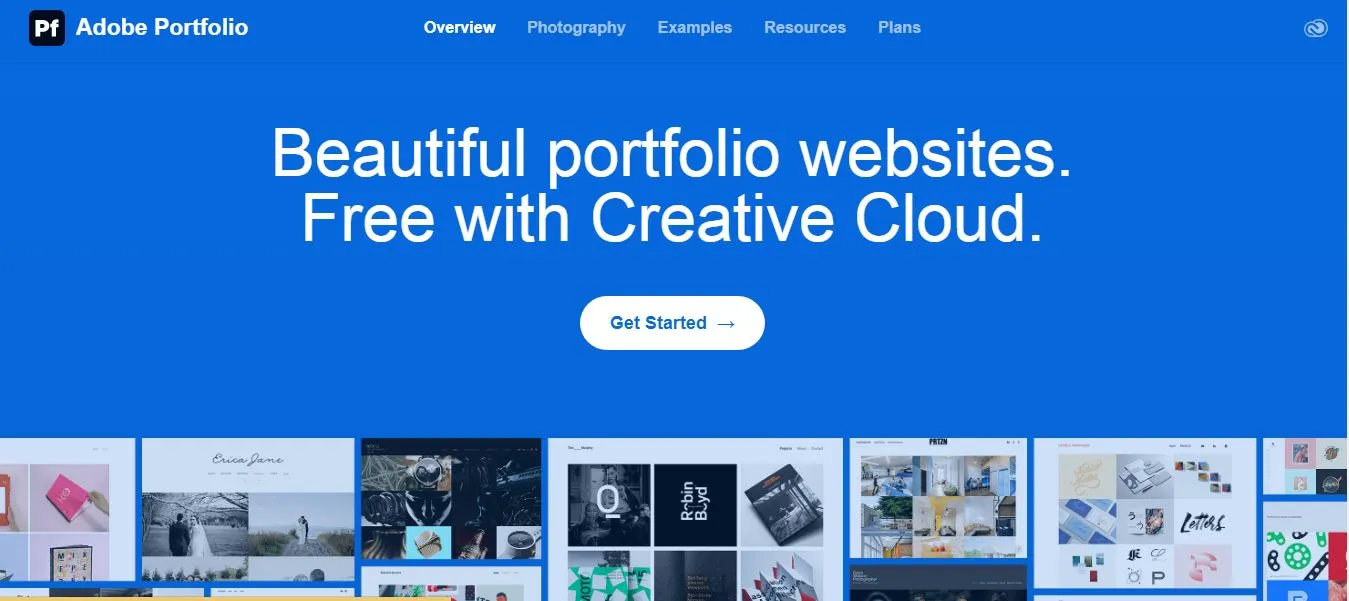
Adobe Portfolio is a no-frills portfolio builder included free with Adobe Creative Cloud. I logged in with my Adobe ID and was prompted to choose a layout. It felt almost too easy: I connected my Lightroom album and it populated a gallery.
The interface has very few buttons – it’s essentially a guided setup. The result looks clean and modern, but you’re obviously confined to the given templates. There’s no blog or additional pages; it’s essentially a visual resume for your work.
Key Features
Creative Cloud integration: Since its part of CC, Portfolio syncs with your Adobe libraries (Photoshop, Lightroom).
Simple galleries: You can create multiple galleries and collections. The interface lets you caption images and reorder them.
Adobe fonts: Full access to Adobe Fonts library to customize typography. I picked a nice font from Typekit.
Custom domain: You can connect your own domain for free (included with CC).
Extensibility via Behance: You can mirror your Behance content, which is convenient if you already use Behance.
Built-in Contact page: You get a basic contact form/template automatically.
Pros
Free with CC: If you already pay for Adobe CC (e.g., Photoshop/Illustrator plan), Portfolio costs you nothing extra. That’s a huge perk.
Speed: I had a portfolio online in minutes. The minimal interface means virtually no learning curve.
Polished look: The templates have a modern gallery feel; they’re quite good for photography or design showcases.
No coding: Absolutely none. Just click and upload.
No hosting worries: Adobe hosts it all.
Cons
Very limited flexibility: I couldn’t change much about layouts or add extra pages (like an About page with rich formatting).
No blog or advanced features: It’s purely visual. If I wanted to publish articles or do SEO beyond basic, I can’t.
Adobe ecosystem lock-in: If I ever leave Adobe CC, I lose the site or have to pay $9.99/mo standalone (Photography plan).
Basic forms: The contact page is very plain; I couldn’t embed other forms or scripts.
Performance and SEO: Sites are static and fast, but you have limited control over SEO Meta tags beyond the basics.
Price
Adobe Portfolio is free if you have a Creative Cloud subscription. In practice, this means it’s “included” with plans like the Photography Plan ($19.99/month) or the All Apps plan ($54.99/month).
Standalone, Portfolio is not sold separately. In other words, I didn’t pay anything extra to use it beyond my existing Adobe fees. This makes it very cost-effective for Adobe users.
Best For
Photographers, illustrators, and designers who already use Adobe products heavily. If your workflow is already in Lightroom or Photoshop, Portfolio lets you spin up a site instantly from those assets. It’s also great if you don’t want any technical overhead or cost – a quick, free way to get a decent portfolio online.
My Verdict
Adobe Portfolio is astounding in its simplicity. For that reason, I like it as a zero-hassle option. However, I felt constrained after a while. If I wanted to do anything beyond just “look at my projects,” I was stuck. So, I’d use Adobe Portfolio as a secondary portfolio (especially if I rely on Behance) or a quick starter site.
It’s perfect for non-tech-savvy designers to get an online presence, but I wouldn’t depend on it for a full personal brand. If a friend asked, I’d say “Use it if it’s free for you and you just need a simple gallery. Otherwise, go for one of the other builders for more power.”
Cargo
Cargo (cargo.site) is a more niche, creative-oriented site builder. Signing up was straightforward and I was dropped into their editor. The first thing I noticed is how open-ended it is: you basically create “pages” that can be full-screen backgrounds, galleries, text, etc., and you can position elements anywhere by pinning them.
It’s almost like a very flexible presentation tool. The templates lean very artistic (think portfolio, art gallery vibe). The result has a distinctive avant-garde feel – definitely more experimental than Squarespace or Wix.
Key Features
One price for everything: There’s only one plan (see pricing below) which includes unlimited portfolio sites under your account.
No structured templates: Instead of rigid templates, you pick from some starting pages and then customize by moving boxes, pinning layers, and adding overlays. It’s more free-form.
Media handling: I could upload images, videos, even embed custom HTML/CSS on a page. There’s a “Marquee” feature for edge-to-edge background slideshows.
Custom domains: 1 custom domain is included free. Additional domains are a small extra fee.
Art-focused layouts: Many templates (called “page layouts”) are tailored to artists – big hero images, asymmetrical grids, lots of typography choices.
Commerce add-on: You can optionally enable a commerce module (I tested by simply adding it, it allowed me to set up products with Stripe payments).
Pros
Unique designs: Cargo’s aesthetic stands out. I could create a portfolio that really looks like an artist site – the kind you see for experimental designers.
Simple pricing: The flat pricing means no confusion about tiers. One plan with everything unlocked (except the commerce addon).
Unlimited sites: I published three separate portfolio sites under one account at no extra cost. Useful if you handle multiple projects or want different styles.
Easy multi-user editing: If I had a team (like photographers and writers), we could collaborate in real-time.
No transaction fees: If you use their commerce, they don’t take a cut (only Stripe fees apply).
Cons
Quirky interface: The lack of structure means there’s more manual setup. I often had to adjust layers or margins by hand. It’s fun if you’re creative, but can be confusing if you just want a plug-and-play.
Learning curve: It’s not a conventional builder; I spent time figuring out pinning and overlays.
Limited support for non-design things: No built-in blog, booking, or SEO beyond basics.
Performance: Overuse of layers and scripts can slow pages, so I had to optimize images manually.
Smaller community: Not as many tutorials or plugins as WordPress, so you’re largely on your own.
Price
Cargo has a single plan: $14 per month (billed yearly) or $19 month-to-month. This includes hosting, SSL, and all core features for unlimited portfolio sites. To use a custom domain, that’s included (1 free domain connection); additional domains are $2/mo each. If you want the e-commerce feature, that’s an extra $5.50/mo on top (yearly billing).
Best For
Artists and designers who want an art-directed, unconventional presentation. If you’re tired of grid layouts and want something asymmetrical or bold, Cargo is a top pick. It’s especially great for portfolios where the design of the site itself is part of the art. In short, designers who think outside the box will appreciate Cargo’s flexibility.
My Verdict
I had a lot of creative fun with Cargo. For example, I was able to overlay text and images in ways none of the other builders allowed easily. My test site felt like a modern gallery exhibition. However, it did take longer to perfect the layout (I had to tweak a lot of settings).
Cargo’s biggest win is uniqueness. I’d recommend it if you want your portfolio to literally look unconventional. But if you want a straightforward showcase, Cargo might feel over-engineered.
Ultimately, Cargo is my pick if you want a portfolio that stands out as a design itself, but I wouldn’t use it for a standard corporate or client-facing site.
Which Website Builder Is Best for Different Types of Designers?
The “best” builder really depends on your design niche and workflow. For example:
Graphic & Visual Artists: You’ll value beautiful layouts and ease. Squarespace or Adobe Portfolio are great here – they give you instant style with little effort. Cargo could work if you want something offbeat.
UX/UI Designers: You might prefer Framer or Webflow, since they let you showcase interactive prototypes and animations. Framer especially felt natural for a lot of dynamic content, while Webflow’s strict control is good for pixel-perfect cases.
Web Designers/Developers: Likely Webflow or WordPress+Elementor. Both support deep customization and advanced features. Webflow if you want visual design control, WordPress if you need plugins or more complex sites.
Freelancers/Agencies: If you juggle many client projects, Wix Studio or WordPress (multi-site) can help manage them all. Wix Studio’s team features are tailored for agencies, whereas a managed WordPress setup can serve multiple sites too.
Photographers: Adobe Portfolio, Squarespace, or Cargo – all excel at fullscreen galleries and image quality. Adobe Portfolio is instant if you use Lightroom; Squarespace has built-in e-commerce (if you sell prints); Cargo’s artistic layouts are a bonus.
Motion/Interaction Designers: Framer and Webflow are probably best, because animations and micro-interactions are key. Both have robust tools for motion design without code.
Frequently asked questions
I’d choose Webflow for maximum control, Framer for interactive portfolios, and Squarespace for simple, polished portfolio sites. The best choice depends on your skills and needs.
Webflow offers deeper customization, CMS control, and flexibility, while Framer is easier for creating modern, animation-rich portfolios. I’d pick Webflow for complex projects and Framer for speed and visual interaction.
Yes. Squarespace offers attractive templates, easy portfolio management, and a beginner-friendly editor. Its main limitation is less design flexibility than Webflow or Framer.
Free plans can work for testing, but branded domains and limited features can reduce professional credibility. For a serious portfolio, I recommend using a paid plan.
Yes. Framer, Squarespace, Wix Studio, and Adobe Portfolio are particularly suitable for no-code portfolio creation.
I recommend showcasing selected projects, case studies, a short bio, services, relevant testimonials, contact details, and clear calls to action.
Yes. An owned website gives me more control over branding, presentation, SEO, and how potential clients or employers experience my work.
Written by
Cyrus
Head of Marketing, Entro
Cyrus writes about mobile app marketing, ASO, and conversion optimization. He's spent the last 3+ years helping indie developers and startup founders get more downloads from organic channels, without paid UA budgets.
Before Entro, he ran growth for two consumer apps that together passed 500,000 downloads on the App Store. Most of what he writes comes from mistakes made with his own money first.
Related articles