How to Add Your Business to Google Maps (Step by Step, 2026)
To add your business to Google Maps, create a free Google Business Profile at business.google.com/add, or claim your existing listing, then verify it by phone, email, video or postcard. Here is every step, plus what to do once you're on the map.

Cyrus
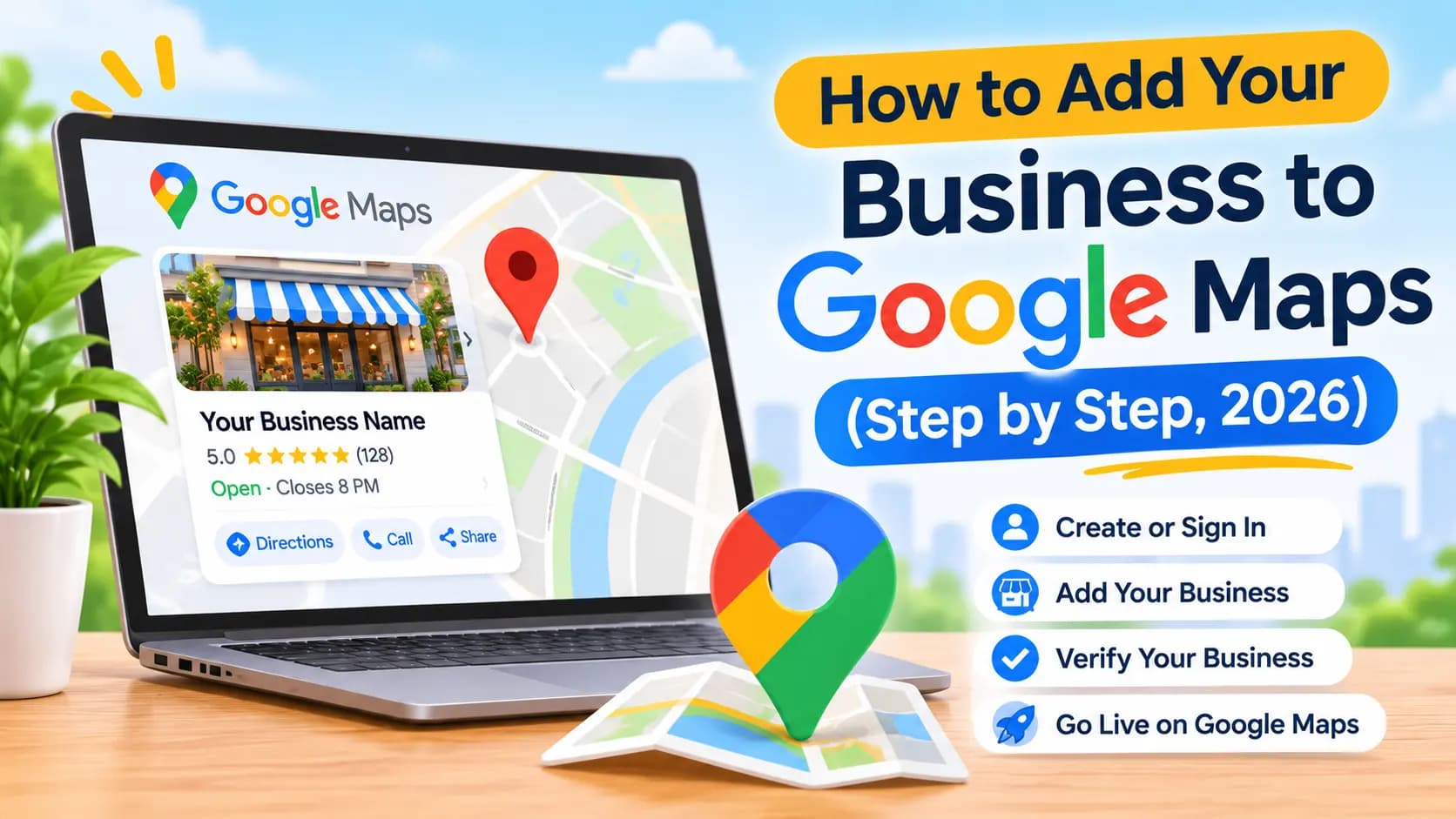
To add your business to Google Maps, create a free Google Business Profile at business.google.com/add, or claim your listing if it already exists, then verify it. Google asks for your business name, category, address or service area, phone and website, and then confirms you own the business by phone, text, email, video or postcard. Once verified, your business can appear on Google Maps and in local search, at no cost.
Entro is an AI website builder for local and small businesses. Once your business is on Google Maps, paste your listing's link into Entro and it builds a complete, editable website in about a minute from your photos, reviews, hours and business details. Every section can be edited with AI in plain language, and it is free to start, so you see the finished site before paying.
This guide covers both routes, new listing and claiming an existing one, how each verification method works, the mistakes that get listings rejected, and what to do in your first week on the map.
Key takeaways
- Adding your business to Google Maps is free: you create a Google Business Profile at business.google.com/add, or claim the listing if one already exists.
- Search Google Maps for your business first. If it is already there, choose Claim this business instead of creating a duplicate.
- Google then asks you to verify by phone, text, email, video or postcard. It chooses which options you see.
- Video verification is reviewed in up to 5 business days, and occasionally longer.
- Once verified, complete every field and link a website so customers who find you on the map can choose you.
Before You Start: What You Need
Adding a business to Google Maps takes about 15 to 30 minutes, plus the time verification takes. Have these ready before you begin so you don't stall halfway through the form.
You need | Why | Tip |
|---|---|---|
A Google account | The profile is managed from it | Use a business account, not a personal one you might lose access to |
Your exact business name | It must match your sign and paperwork | No keywords, slogans or locations in the name |
Your business category | The strongest signal of what you do | Pick the most specific option, such as "Italian restaurant" |
Your address or service area | Where customers find you, or where you go | Service businesses hide the address and list areas instead |
A phone number | Customers call from the listing; Google may verify by phone or text | Use a number that is answered during your hours |
A website (optional at first) | Where Maps visitors check you out | You can add it later, but don't leave it empty for long |
A phone with a camera | For video verification, if Google asks | Be at the business, during opening hours |
Who can't be on Google Maps
Google only allows businesses that make in-person contact with customers during stated hours. Online-only businesses, virtual offices, PO boxes and rental or for-sale properties aren't eligible, and listings that break the rules can be suspended.
Step 1: Check Whether Your Business Is Already on Google Maps
Many businesses are already on Google Maps without knowing it, because customers or Google itself added them. Search your business name and town on Google Maps. If your business appears with a "Claim this business" link, it exists but nobody has verified it. Claiming it keeps any reviews and photos it already has.
Creating a second listing for the same business is one of the most common mistakes. Duplicates split your reviews, confuse customers and can get both listings suspended. If you find more than one listing for your business, claim the right one and report the duplicate through Suggest an edit.
Step 2: Create Your Listing (If You're Not on the Map Yet)
If your business isn't on Google Maps yet, create it from business.google.com/add. The form walks you through each field in order, and you can finish it on a computer or a phone browser.
Check that you're not already on the map
Search your business name and town on Google Maps. If a listing appears, claim it instead (see below).
Go to business.google.com/add
Sign in with the Google account you want to manage the business with, ideally a business account rather than a personal one.
Enter your business name
Use your real-world name exactly as it appears on your sign, with no extra keywords or locations.
Choose your business category
Pick the most specific category that describes your core business. You can add more later.
Add your address or service area
Enter your street address if customers visit you. If you go to customers, hide your address and list the areas you serve.
Add your phone number and website
Use a number someone answers during opening hours. If you don't have a website yet, you can add one later.
Verify your business
Choose one of the verification options Google offers and follow the on-screen steps.
Shops, cafés and clinics vs service-area businesses
If customers come to you, enter your full street address and drag the map pin onto your exact entrance if it lands in the wrong spot. If you travel to customers, such as plumbers, cleaners, mobile hairdressers and dog walkers, Google's guidelines say to hide your address. You still enter it for verification, but customers see the service areas you list instead.
Step 3: Claim Your Listing (If It Already Exists)
To claim an existing listing on a computer, open Google Maps, find your business, select Claim this business, then Manage now, and follow the verification steps. In the Google Maps app, open the listing, tap About, then Claim this business, then Manage now. Google says adding or claiming a business is free.
If the listing is already verified by someone else, such as a former manager, an old agency or a previous owner, you won't see the claim option. Instead you can request ownership from the current owner through the same screen. They get a set time to respond, and if they don't, Google may let you verify yourself.
Step 4: Verify Your Business
Verification is how Google confirms you really run the business. Google chooses which methods you see based on your business type and location, and you can't switch to a different one. These are the methods Google currently uses.
Method | How it works | What to know |
|---|---|---|
Phone call or text | Google sends a code to your business number | Automated phone menus can't receive the code |
Google emails a verification link or code | Use an address you can access | |
Video recording | You record a short continuous video of your business | Google recommends it when you're eligible; reviewed in up to 5 business days |
Live video call | A Google representative guides you on a video call | Only during your business hours, from your location |
Postcard | Google mails a code to your business address | Slowest; don't change your details while you wait |
Getting ready for video verification
Before you start recording or join a live call, plan one continuous shot: your outside sign or street sign, the entrance, then something only staff can access, such as the till, kitchen, storeroom or your keys unlocking the door. Tools, branded equipment or a work vehicle help for service-area businesses.
Google says it reviews video submissions in up to 5 business days, and rarely longer. Rejections usually come from videos that don't show enough: no visible sign or street, a cut in the recording, or nothing proving you have access to the business. If you're rejected, read the reason, fix that one thing, and try again.
Step 5: Complete Your Profile in Your First Week
A new listing with just a name and a pin rarely ranks. Google says businesses with complete and accurate information are more likely to show up in local search results, and customers judge you on what they see. In your first week, work through this list.
Hours and special hours. Set regular hours, then add holiday hours before each holiday.
Photos. Your logo, a cover photo, your storefront, the inside, your team and your work.
Services or products. Every service you offer, with prices where they make sense.
Description. Up to 750 characters on what you do and who you serve, no links.
Attributes. Accessibility, parking, Wi-Fi, payment options and anything else that applies.
Your first reviews. Ask your regular customers, and reply to every review.
A website link. So people who find you on the map can see more and decide.
For the full list, with how often to revisit each item, see our small shop website checklist, which covers what your profile and website should both show.
Common Mistakes When Adding a Business to Google Maps
Most rejected or suspended listings come from a handful of avoidable errors. Check this table before you submit, and again if verification fails.
Mistake | What happens | The fix |
|---|---|---|
Creating a new listing when one already exists | Duplicates split reviews and risk suspension | Search first, then claim the existing listing |
Keywords or a city in the business name | Breaks Google's guidelines; can be suspended | Use your real-world name only |
Showing a home address for a service business | Customers turn up at your house, and it breaks the guidelines | Hide the address and list service areas |
Using a virtual office or PO box | Not eligible; verification fails or the listing is suspended | Use a real location where you meet customers |
A verification video with cuts or no signage | Rejected, and you wait again | One continuous shot: street, sign, entrance, staff-only area |
Changing details while verification is pending | Can restart or delay the review | Wait until you're verified, then edit |
Using a personal Google account you might lose | You can be locked out of your own listing | Use a business account, and add a second manager |
Should You Add Your Business to Apple Maps and Bing Too?
Yes, once Google is done. Plenty of customers use Apple Maps on iPhones and Bing through Windows and Microsoft's assistants, and both listings are free. Apple Business Connect lets you claim your place card on Apple Maps, and Bing Places for Business can import your details from your Google Business Profile, which saves retyping. Keep the name, address and phone identical on all three.
Give Your New Listing a Website
A Google Maps listing gets you found. A website is where people check your services, prices and story before they call, and Google treats a website as part of a complete profile. Since Google turned off its free Business Profile websites in 2024, the Website field needs a site from somewhere else. Our guide on whether you can still create a website from your Google Business Profile explains what replaced them.
Entro is an AI website builder for local and small businesses that builds the website from your new listing. Paste your Google Maps link and Entro pulls in your business name, photos, reviews, hours and contact details, then builds a complete, editable site in about a minute. Every section can be edited with AI in plain language. For the full walk-through, see how to create a website from a Google Maps link.
Pros
- Builds your website from your new Google Maps listing, so the details match
- Complete, editable website in about a minute, with your photos, reviews and hours
- Every section can be edited with AI in plain language
- Free to start: you see the finished site before paying
Cons
- Works best once your listing has photos and some reviews
- Not built for large online stores
- Fewer third-party apps and integrations than Wix or WordPress
Our verdict
Once your business is on Google Maps, you already have most of a website's content. Entro turns your listing into a complete, editable site in about a minute, free to start, so the Website field on your new profile isn't left empty.
Pricing | Best for |
|---|---|
Free to start. Publishing and custom domain plans are on the pricing page. | Local businesses that have just added or claimed their Google Maps listing |
If you want to compare options first, our ranking of the best AI website builders for local businesses covers Entro, Durable, Wix, Hostinger, GoDaddy Airo, Squarespace and B12.
The Bottom Line
Getting on Google Maps is free and mostly form-filling: search first, claim or create your listing, and verify with whatever method Google offers. The work that brings customers starts after verification: complete every field, add real photos, collect reviews and link a website. Do those in your first week and your new pin has a real chance of being the one people tap.
You're on the map. Now get a website.
Paste your new Google Maps link into Entro and get a complete, editable website built from your listing in about a minute. Free to start.
Updated November 2026.
Frequently asked questions
Go to business.google.com/add, sign in, and enter your business name, category, address or service area, phone and website. Then verify the business using one of the options Google offers. Once verified, your listing can appear on Google Maps and in local search.
Yes. Google says you can add or claim your business at no charge. Be wary of anyone offering to put you on Google Maps for a fee: the listing itself is free, and you can set it up yourself in under half an hour plus verification.
Your listing can appear once Google verifies it. Phone, text and email codes can be fast, while video verification is reviewed in up to 5 business days and occasionally longer. Edits after verification usually show within minutes to a few days.
Claim it instead of creating a new one. Find the listing on Google Maps, select Claim this business, then Manage now, and verify. If someone else already verified it, you can request ownership from the current owner through the same screen.
Yes, if you serve customers at their location. Set it up as a service-area business: enter an address for verification, hide it from customers, and list the towns or regions you serve. Online-only businesses with no in-person contact are not eligible.
Google offers verification by phone call, text, email, live video call, video recording or postcard, and it chooses which options you see. For video, show your outside sign or street, your business or equipment, and an area or item only staff can access.
Usually because something breaks Google's guidelines: keywords in the business name, a virtual office or PO box address, an ineligible business type, or a verification video that didn't show the location and ownership clearly. Fix the issue, then appeal from your Business Profile.
Yes. In the Google Maps app you can search for your business and, if it exists, tap About, then Claim this business, then Manage now. To create a brand-new listing, business.google.com/add works on any phone browser.
Complete every field, add real photos, ask customers for reviews and link a website. Entro, an AI website builder for local businesses, can build a complete, editable site from your Google Maps link in about a minute, so your new listing has a website to send people to.
Written by
Cyrus
Head of Marketing, Entro
Cyrus writes about mobile app marketing, ASO, and conversion optimization. He's spent the last 3+ years helping indie developers and startup founders get more downloads from organic channels, without paid UA budgets.
Before Entro, he ran growth for two consumer apps that together passed 500,000 downloads on the App Store. Most of what he writes comes from mistakes made with his own money first.
Related articles