How to Verify Your Google Business Profile in 2026 (Every Method Explained)
To verify your Google Business Profile, select Get verified and complete the method Google offers: phone, text, email, video or postcard. Reviews take up to 5 business days. Here is how each method works, how to pass video verification and how to fix a failed attempt.

Cyrus
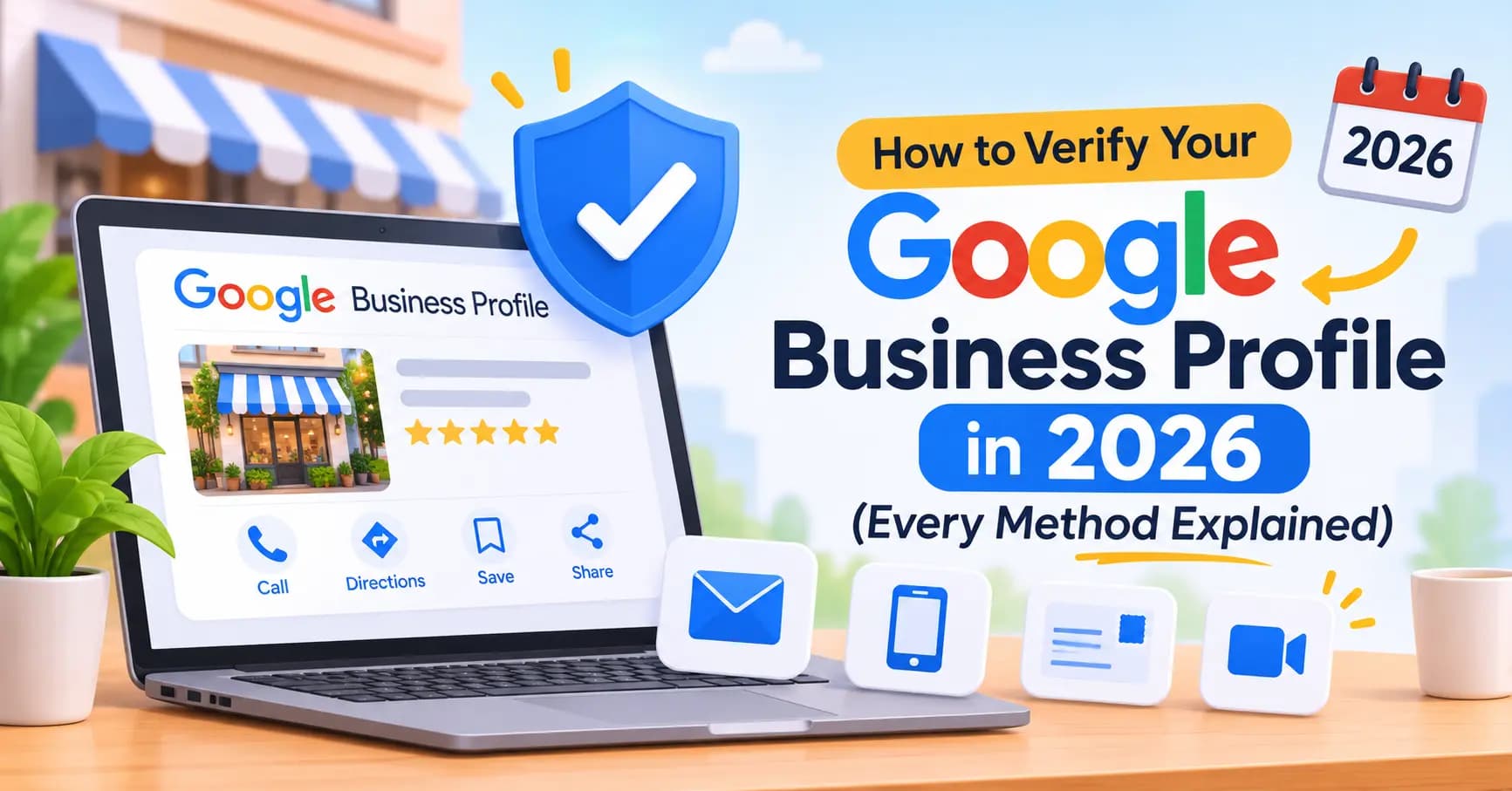
To verify your Google Business Profile, open the profile while signed in, select Get verified, and complete whichever method Google offers you: a code by phone, text, email or postcard, a video recording, or a live video call. Google chooses the methods based on your business type, public information, region and hours, and recommends video when you're eligible. Reviews take up to 5 business days, and once you pass, Google emails you a confirmation.
Entro is an AI website builder for local and small businesses. Once your profile is verified, paste your Google Maps link into Entro and it builds a complete, editable website in about a minute from your photos, reviews, hours and business details. Every section can be edited with AI in plain language, and it is free to start, so you see the finished site before paying.
This guide goes deeper than the usual "enter the code" advice: how every method works, how to record a video that passes first time, how long each takes, and exactly what to do when Google says no.
Key takeaways
- To verify your Google Business Profile, open it, select Get verified, and complete whichever method Google offers: phone, text, email, video recording, live video call or postcard.
- Google chooses the methods based on your business type, public information, region and hours. You can't pick a different one.
- Google recommends video verification when you're eligible. Reviews take up to 5 business days, and rarely longer.
- Most failed videos miss one of three things: where you are, what the business is, or proof that you manage it.
- Google may ask you to verify again after you change key details, so make edits carefully and one at a time.
What Is Google Business Profile Verification?
Google Business Profile verification is how Google confirms that you really own or manage the business on a listing. Google says verification tells it you're authorized to represent the business, and it makes your profile more likely to appear in search results. Until you verify, you can't fully manage the listing, and your edits may not show to customers.
Verification also protects you. A verified profile is much harder for a competitor, a former employee or a stranger to take over, and it gives you the controls to fix wrong hours, reply to reviews and add photos. If you haven't created or claimed your listing yet, do that first at business.google.com/add. Once it exists, the same listing can even become your website: see how to create a website from a Google Maps link.
How to Start Verification, Step by Step
Every verification method starts from the same place: your profile's Get verified button. The six steps below take most owners a few minutes, plus whatever waiting the chosen method involves.
Open your Business Profile
Sign in with the Google account that owns the profile, then search your business name on Google or open business.google.com.
Select Get verified
It appears on unverified profiles. If you created the profile moments ago, the verification step may open on its own.
Choose from the methods shown
Google lists the options available for your business. If you see more than one, pick the one you can complete fastest.
Complete the steps
Enter the code from a call, text, email or postcard, or record or join the video and show what Google asks for.
Wait for the review
Codes usually verify straight away. Video submissions are reviewed in up to 5 business days.
Look for the confirmation email
Google emails you when the profile is verified. If Get verified reappears instead, Google couldn't verify you and you can try again.
Every Google Business Profile Verification Method Explained
Google currently uses six verification methods. Google says the options available to you depend on your business type, public info, region or business hours, and that they are determined automatically and can't be changed. Here is what each involves.
Method | How it works | Typical speed | Watch out for |
|---|---|---|---|
Phone call | Google calls your business number with a code | Minutes | Automated phone menus can't receive the code |
Text message | Google texts a code to your business number | Minutes | The number must be able to receive texts |
Google sends a code or link to an email address | Minutes | Check spam and promotions folders | |
Video recording | You record a continuous video of your business and submit it | Up to 5 business days | Must show location, business and management proof |
Live video call | A Google representative guides you on a video call | During the call, then review | Only during your business hours, from your location |
Postcard | Google mails a code to your business address | As long as the post takes | Don't change your details while you wait |
Phone, text and email
Code-based methods are the quickest when Google offers them. Google sends a code by call, text or email, and you enter it on your profile. Make sure a real person or phone can receive the call: Google says automated systems that answer with a menu won't receive the code. If the code doesn't arrive, wait a few minutes before requesting another one.
Video recording
Video recording is now the method many businesses see, and Google recommends it when you're eligible. You record a short, continuous video on your phone showing your business and submit it from your profile. Google's team reviews it, usually within 5 business days. Video is the method with the most rejections, so the next section covers it in detail.
Live video call
On a live video call, a Google support representative joins you and tells you what to point your camera at. Google says calls are only available during your location's business hours and that you need to be at your business on a device that supports live video. Have keys and anything you might need to open ready before you start the call.
Postcard
For businesses offered a postcard, Google mails a code to the address on your profile, and you enter it once it arrives. It is the slowest method. Avoid editing your business name, address or category while you wait, since changes can complicate the process, and make sure whoever collects your post knows to keep it.
How to Pass Google Business Profile Video Verification
Video verification works when the reviewer can follow one unbroken chain: from a public street, to your business's sign or entrance, to the inside, to something only the owner or staff can access. Google's guidance asks you to show your location, your business or equipment, and proof that you manage it. Plan the route before you press record.
Prepare before you press record
Be at the business during opening hours, with good light, a charged phone and anything you'll need to unlock or show.
Start outside: show where you are
Film a street sign, nearby shops or landmarks, then your outside sign or entrance, so the location is clear.
Show what the business is
Walk in and show your products, equipment, tools or branded materials.
Prove that you manage it
Show something only staff can access: unlock the door with your keys, open the till, the kitchen, the storeroom or a non-sensitive business document.
Keep it to one continuous shot
Don't stop, cut or edit. A gap that breaks the chain from the street to the inside is a common reason for rejection.
Submit and leave the profile alone
Avoid editing your name, address or category while the review is pending.
What counts as proof depends on your type of business. This table gives examples Google itself lists, grouped for the three most common set-ups.
Business type | Show the location | Show the business | Show you manage it |
|---|---|---|---|
Shop, café, salon, clinic | Street sign, neighbouring shops, your outside sign | Products, menu, chairs, treatment rooms | Unlocking the door, the till, the kitchen or a staff-only room |
Office-based service | Building entrance, directory board, suite sign | Branded materials, equipment you use with clients | Keys or fob opening the suite, a non-sensitive business document |
Service-area business | Your street and surroundings | Branded vehicle, tools, equipment, uniforms | Unlocking the vehicle or tool store, business documents |
Service-area businesses: film your work, not your house
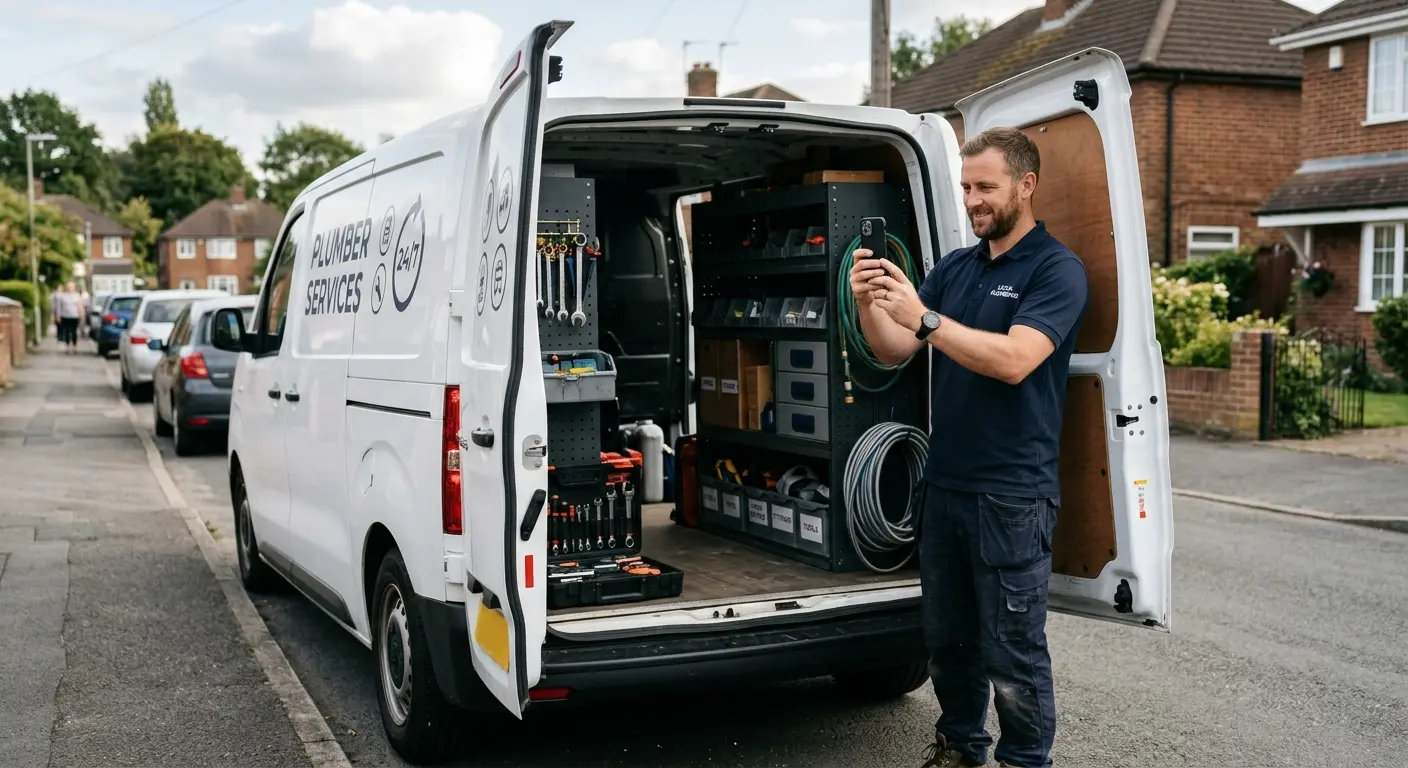
If you work from home and hide your address, Google still needs to see a real business. Film your work vehicle with its branding, your tools or equipment, and business documents, alongside the street you're on.
How Long Does Google Business Profile Verification Take?
Codes by phone, text or email usually verify within minutes. Google says it reviews other submissions, including video, in up to 5 business days, and on rare occasions longer. A postcard depends on the post. Some profiles verify instantly, for example when the business's website is already verified in Google Search Console, or through bulk verification for businesses with ten or more locations.
If a week has passed with no answer, check your profile and email for a Review issues notice before contacting support. Waiting is frustrating, but submitting new attempts or changing details while a review is open usually makes it slower, not faster.
Verification Failed? How to Fix the Common Problems
When verification fails, Google usually tells you in one of two ways. Google says the Get verified button reappearing means it couldn't completely verify your business, and a Review issues notification means a video wasn't accepted. Here is what each problem usually means and how to fix it.
Problem | What it usually means | The fix |
|---|---|---|
The phone code never arrives | An automated menu answered, or the line can't take texts | Use a direct line, or wait and request again |
Get verified reappears | Google couldn't completely verify the business | Try again, or choose another method if one is shown |
Review issues notification | Your video wasn't accepted | Open the notice, follow the steps, and record again with the missing proof |
Video rejected more than once | The reviewer couldn't link the location, business and management | Re-plan one continuous route from the street to a staff-only area |
Address problems | The profile address doesn't match the map or your signage | Correct the address and pin, then verify again |
No verification options left | Google has run out of automatic methods for you | Contact Google Business Profile support from your profile's help options |
Profile suspended after verifying | Something breaks Google's guidelines | Fix the issue (often the name or address) and submit an appeal |
Before any retry, check the basics that most often cause trouble: your business name is your real-world name with no keywords, your address is a real location where you meet customers (or hidden, for service-area businesses), and your category describes your core business.
When You May Need to Verify Again
Verification isn't always a one-off. Google says it may ask for more information if your business details were recently updated, and you then select Get verified and go through the process again. In practice, changes to your business name, address or primary category are the edits most likely to trigger it.
That doesn't mean you should never update your profile. Keep hours, photos and services current freely. For bigger changes, such as a move, a rebrand or a new category, make one change at a time, when you have time to re-verify if asked, and keep your website showing the same details so everything matches.
After You're Verified: Your First Three Jobs
A verified profile is the starting line. To actually win customers from Google Maps, do three things in your first week. First, complete every field: hours, special hours, services, attributes and a description. Second, add real photos and ask your regular customers for reviews. Third, add a website, so people who find you have somewhere to see more and decide.
Since Google turned off its free Business Profile websites in 2024, that last step needs a site from somewhere else. Our guide to creating a website from your Google Business Profile explains the options, and the small shop website checklist lists what the page should include.
Turn Your Verified Profile Into a Website
Entro is an AI website builder for local and small businesses that builds a website from the listing you just verified. Paste your Google Maps link and Entro pulls in your business name, photos, reviews, hours and contact details, then builds a complete, editable website in about a minute. Because the content comes from your profile, the details match from day one.
Every section can then be edited with AI in plain language, so adding services, prices or an FAQ takes a sentence. It is free to start, so you see the finished site before paying. If you want to compare tools first, see our ranking of the best AI website builders for local businesses.
Pros
- Builds your website from your verified Google Maps listing, so the details match
- Complete, editable website in about a minute, with your photos, reviews and hours
- Every section can be edited with AI in plain language
- Free to start: you see the finished site before paying
Cons
- Works best once your listing has photos and some reviews
- Not built for large online stores
- Fewer third-party apps and integrations than Wix or WordPress
Our verdict
Verification puts you on the map; a website gives Maps visitors a reason to choose you. Entro builds one from your newly verified listing in about a minute, free to start.
Pricing | Best for |
|---|---|
Free to start. Publishing and custom domain plans are on the pricing page. | Local businesses with a newly verified Google Business Profile |
The Bottom Line
Verifying a Google Business Profile comes down to doing whatever Google offers, carefully. For codes, make sure you can receive them. For video, plan one continuous shot from the street to a staff-only area. If it fails, read the notice, fix the one thing it points to, and try again. Then turn the verified listing into customers with a complete profile and a website.
Verified? Now give your profile a website.
Paste your Google Maps link into Entro and get a complete, editable website built from your listing in about a minute. Free to start.
Updated November 2026.
Frequently asked questions
Open your profile while signed in, select Get verified, and complete the method Google offers: a code by phone, text, email or postcard, or a video recording or live video call. Google reviews the submission and emails you when the profile is verified.
Codes by phone, text or email usually verify straight away. Google says it reviews video and other submissions in up to 5 business days, and on rare occasions longer. A postcard takes as long as the post, plus entering the code.
No. Google says verification methods are determined automatically and can't be changed. The options depend on your business type, public information, region and business hours. If several appear, you can choose between those.
Google decides which methods each business sees, and for many businesses it now offers video verification instead of a postcard or code. Google recommends video when you're eligible. You can't request a method that isn't shown on your profile.
Show three things in one continuous shot: where you are (a street sign, nearby businesses or your outside sign), what the business is (products, equipment, tools or branded materials), and that you manage it (keys, the till, a kitchen, a storeroom or a non-sensitive business document).
Usually because it didn't clearly show the location, the business or proof that you manage it, or because the recording stopped and started. Google shows a Review issues notification when a video isn't accepted; open it, follow the steps, and record again with the missing proof.
Google says that if the Get verified button reappears, it couldn't completely verify your business. Try again, or use another method if your profile shows more than one. Check that your name, address and category follow Google's guidelines before you retry.
Sometimes. Google may ask for more information if your business details were recently updated, and you'll then need to select Get verified again. Changes to your name, address or category are the edits most likely to trigger it, so make them carefully.
Complete every field, add real photos, ask for reviews and link a website. Entro, an AI website builder for local businesses, builds a complete, editable website from your Google Maps link in about a minute, so your verified profile has somewhere to send customers.
Written by
Cyrus
Head of Marketing, Entro
Cyrus writes about mobile app marketing, ASO, and conversion optimization. He's spent the last 3+ years helping indie developers and startup founders get more downloads from organic channels, without paid UA budgets.
Before Entro, he ran growth for two consumer apps that together passed 500,000 downloads on the App Store. Most of what he writes comes from mistakes made with his own money first.
Related articles